Flash BLHeli_S with DSHOT using BLHeli Configurator
The BLHeli Configurator by @diehertz is here! And so is the beta version of DSHOT for BLHeli_S. In this guide, I’ll tell you a little bit about what I’ve learned from diehertz about BLHeli_S and how to flash your own ESCs.
What are BLHeli_S and DSHOT?
The BLHeli_S description basically says that it’s meant to be an easy-to-use version of BLHeli; however, that’s not why I’m really interested in it. I’m interested because Steffen, the creator of BLHeli, has been working on DSHOT support! Beta hex files are here.
You might be wondering now, what is DSHOT? DSHOT is the first ESC protocol that is totally digital (as opposed to analog). This is super exciting because digital protocols are not subject to the same issues that analog suffers from. What this means for us is that we’ll get super accurate and super smooth motor response along the full motor range, all without calibration!
An analog signal is susceptible to noise on the wire and can vary the signal slightly as the noise on the wire changes. This is why, if you’re running PPM or PWM between your RX and your flight controller, you’ll notice on the RX page of the Betaflight Configurator that the values change slightly without moving the sticks.
To continue the analogy with the RX to FC connection, you can think about all the other ESC protocols (PWM, ONESHOT125, ONESHOT42, and MULTISHOT) as PPM/PWM, which are all analog signals, susceptible to timing issues and noise. DSHOT, on the other hand, is like SBUS: a super solid, fast, and accurate digital protocol.
Note that BLHeli ESCs will not necessarily work with BLHeli_S; you’ll need to get some ESCs that explicitly support BLHeli_S.
Okay, let’s flash some ESCs. I’ll be using some BumpBee BLHeli_S ESCs, but I’ll try to expand this article over time to include other ESCs as well.
HEX File Naming Convention
To figure out which HEX file to flash to our ESCs, I talked with diehertz, creator of BLHeli Configurator, and he gave me a quick overview of the naming scheme for BLHeli_S. Here is the summary from diehertz:
-
The files are named:
[A-O]_[HL]_[0-9]{2} -
The first letter encodes ESC circuitry, indicating decisions like which MCU pins are used for signal/gate drivers/BEMF, etc. This will be unique to your ESC and a description of this choice is available in the BLHeli source here.
-
The second letter is for the processor. In the case of the BumpBee_S ESCs, we’ll be using
Hfor theBB21xprocessor. There are only two processor options for BLHeli_S:BB10xusesx_L_xxBB21xusesx_H_xx
-
The number is the FET dead time (the time it takes to switch them off and stop any current from flowing), used as a counter for a simple
while (--i);loop.- The unit is
1 / BB21-frequency, around20ns. - There are ESCs that use zero as a last param; I believe they use specialized chips for gate control. For example, Emax Lightning_S 35A uses
B_H_0.
- The unit is
Note that choosing a FET dead time that is TOO LOW can kill your ESCs, so be careful. If you’re not sure, it’s safer to pick a higher value. For example, picking a firmware ending in _90 is safer than using one that ends in _15, unless you know your ESC’s FETs can support the lower dead time.
By the way, the datasheet for the BumpBee_S FETs is here: /downloads/http-www-s-manuals-com-pdf-dat
Flashing
My BumpBee_S ESCs came with the J_L_90 hex installed. You’ll want to flash a J_H_x hex to your BumpBee ESCs if they came with a different version. I’m going to flash them with a hex with less dead time: J_H_15. Note that if you want to use a J_H_x hex with less dead time, it’s probably safe to do, but some batches of FETs seem to handle this differently, so you may burn up one “identical” ESC and not another. Stick with the J_H_90 if you want to play it safe.
Grab the BLHeli Configurator.
Note that from inside the BLHeli Configurator, you can load the DSHOT hex files directly, so there is no need to manually download the HEX files from GitHub. However, if you prefer to use the hex files from the GitHub repo, you can download the specific HEX file you’ll be using or just download all hex files as a zip from /downloads/download-the-specific-hex-file.
Connect your ESC to your flight controller as you normally would. Note that the BLHeli Configurator only supports pass-through programming. If you need to flash some ESCs without a bootloader, you’ll need the BLHeliSuite, which will let you program your ESCs via C2 or with an Arduino.
Okay, now that you’ve got all the software and your flight controller wired to your ESC, onto flashing.
If your ESCs came with a different firmware than the one we’re about to select, be sure to check the scary “Ignore inappropriate MCU and Layout” checkbox:

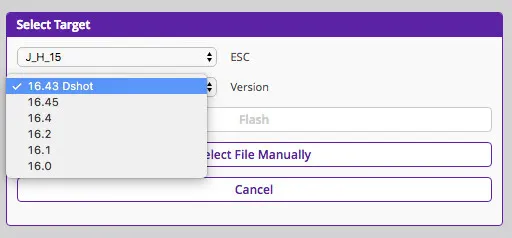
Now pick the right ESC hex from the drop-down and pick the DSHOT version.
Alternatively, if you downloaded the hex files manually, pick the right DSHOT hex file.
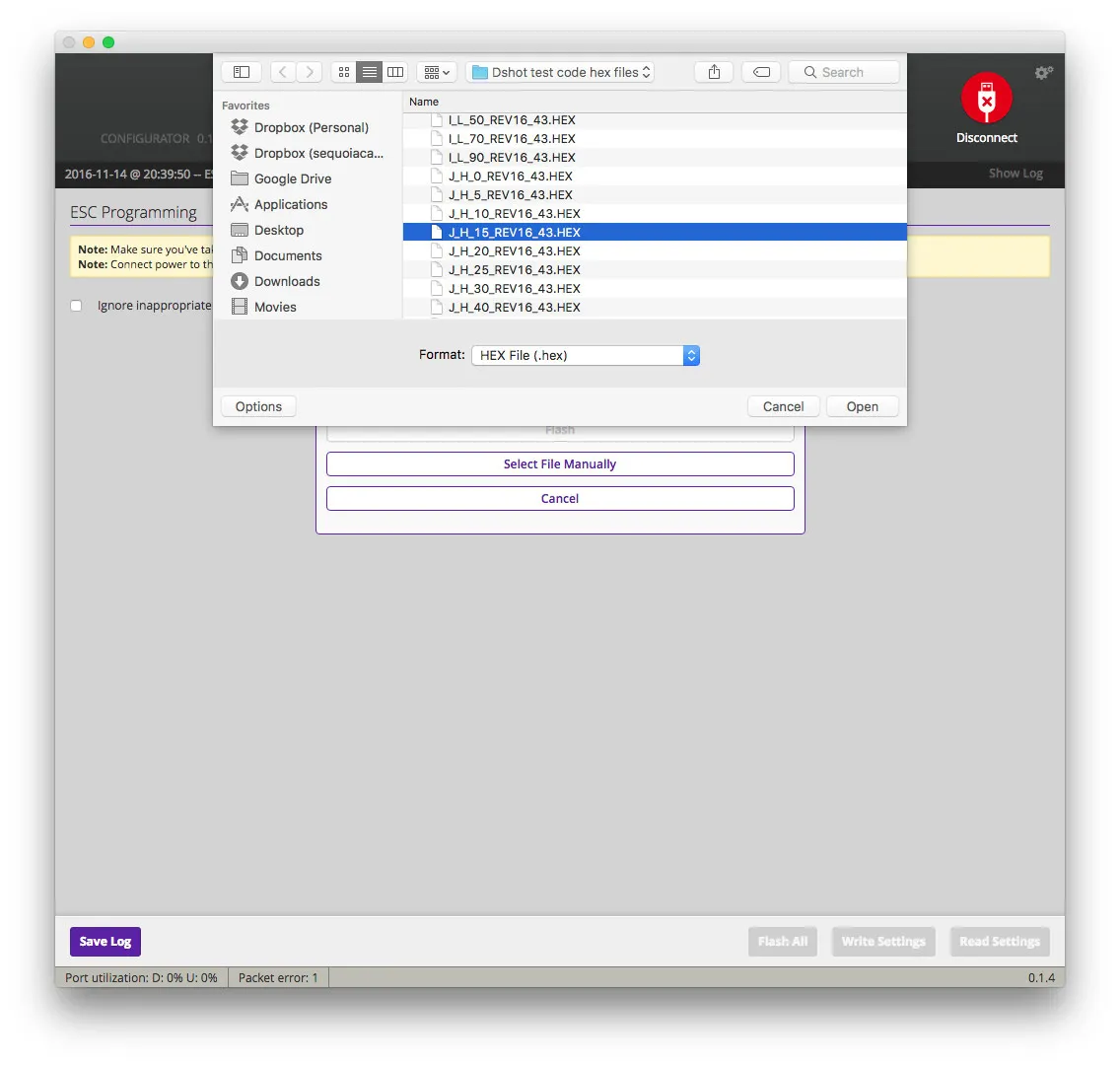
Okay… flashing:
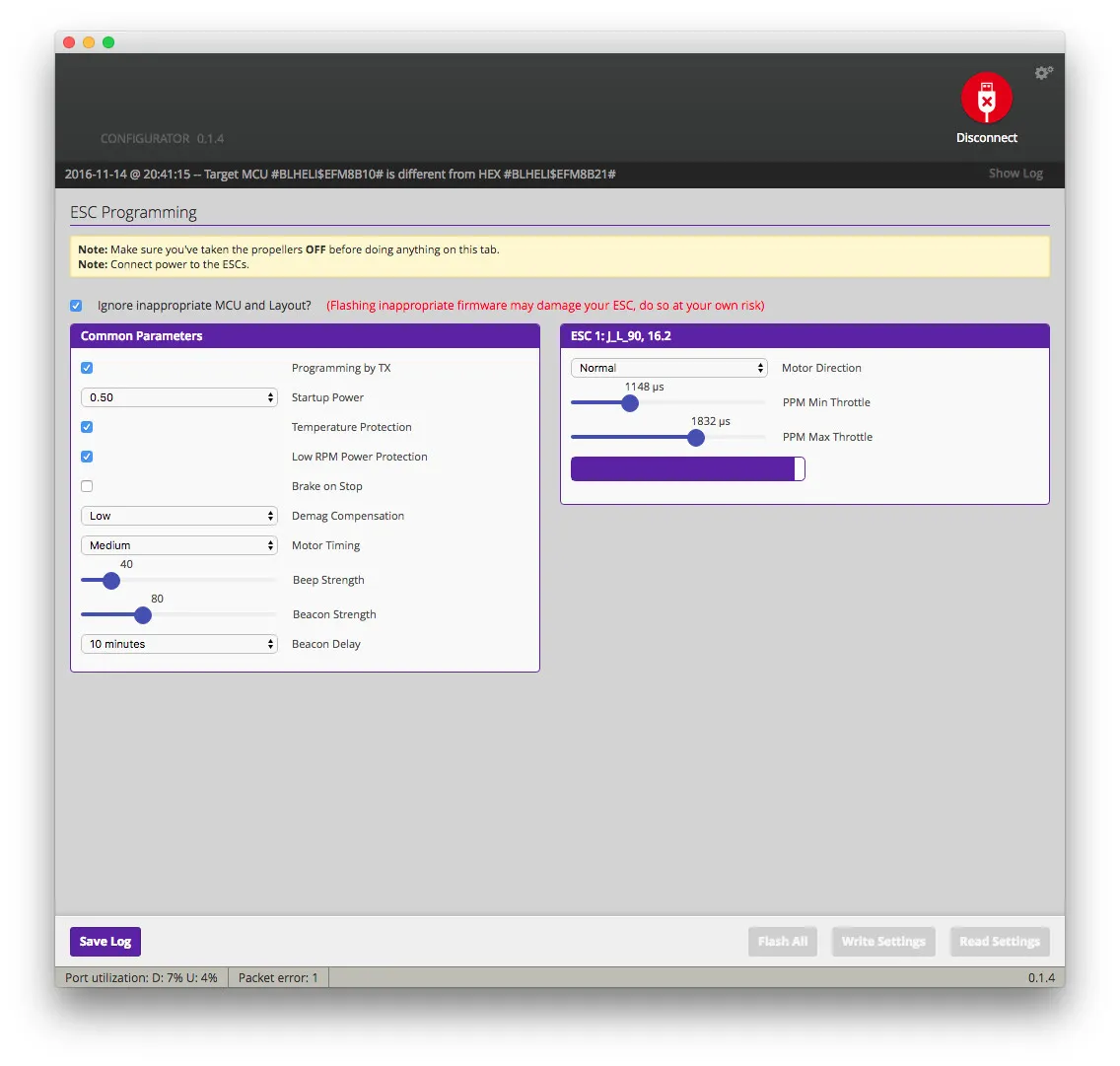
That’s it! You’re all set. I usually go into the Betaflight Configurator at this point and make sure I have DSHOT set as the motor protocol, then throttle up the ESCs to make sure they’re working. :)
Specific ESCs
Here are my notes on flashing and configuring specific ESCs. I’ll try to expand this section as I flash more ESCs with DSHOT. Feel free to comment below if you have tips or questions.
BumpBee_S
DSHOT 600 seems to work great. I have only bench-tested; I will update this after I get my first flight in.
-
Note that there are 2 different versions of the BumpBee: the
BumpBeeandBumpBee_S. Only the_Sversion supports DSHOT. -
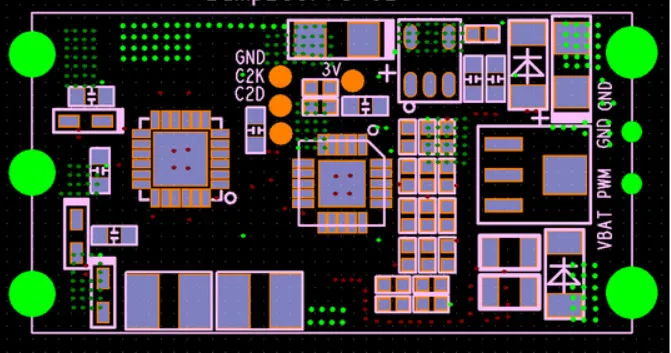
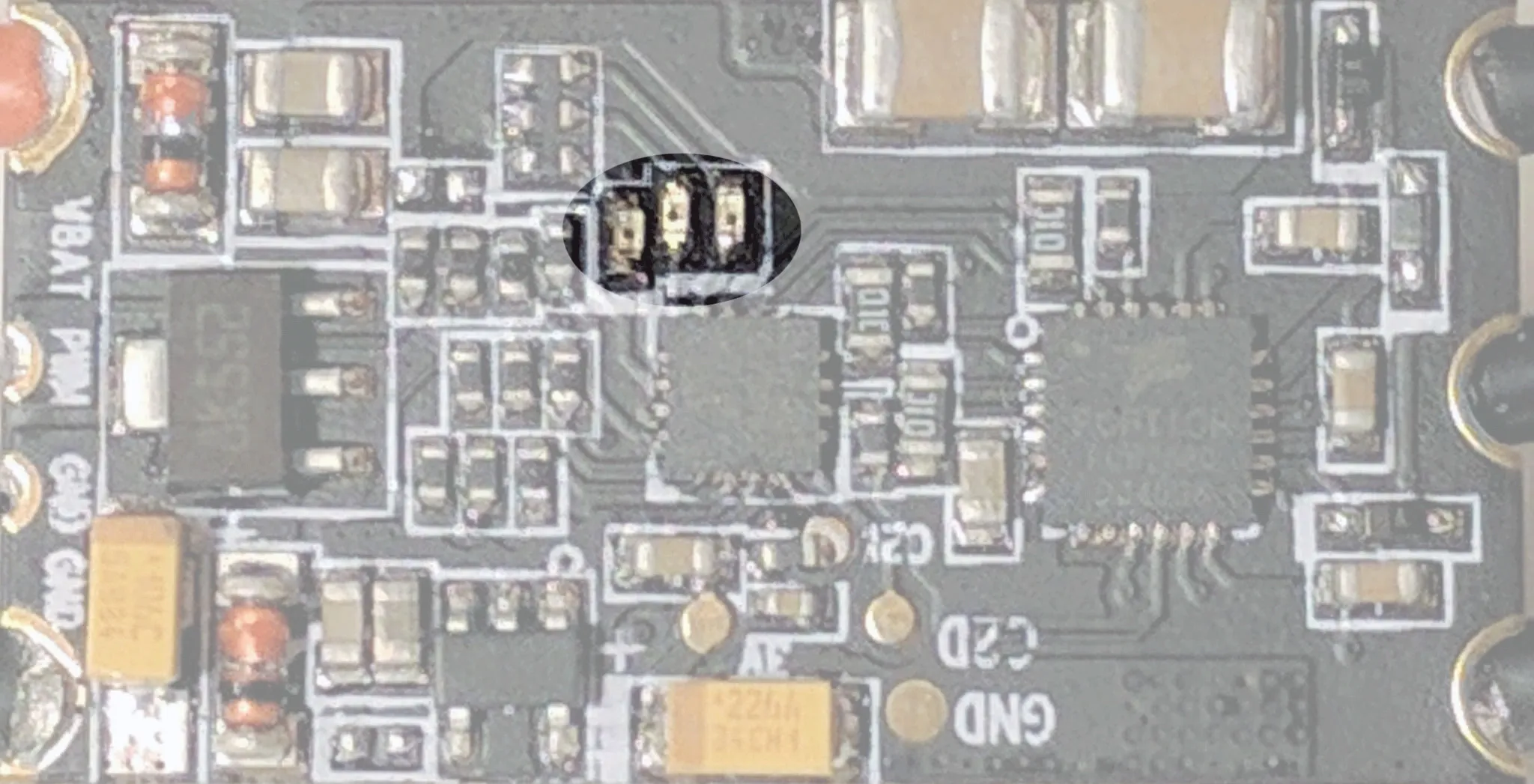
If there are 3 LEDs on the back, then it is a BumpBee_S using
BB21, and requiresJ_H_xx.
-
If there is no LED on the back, it is a standard BumpBee. It uses
F396and it will not work with BLHeli_S. -
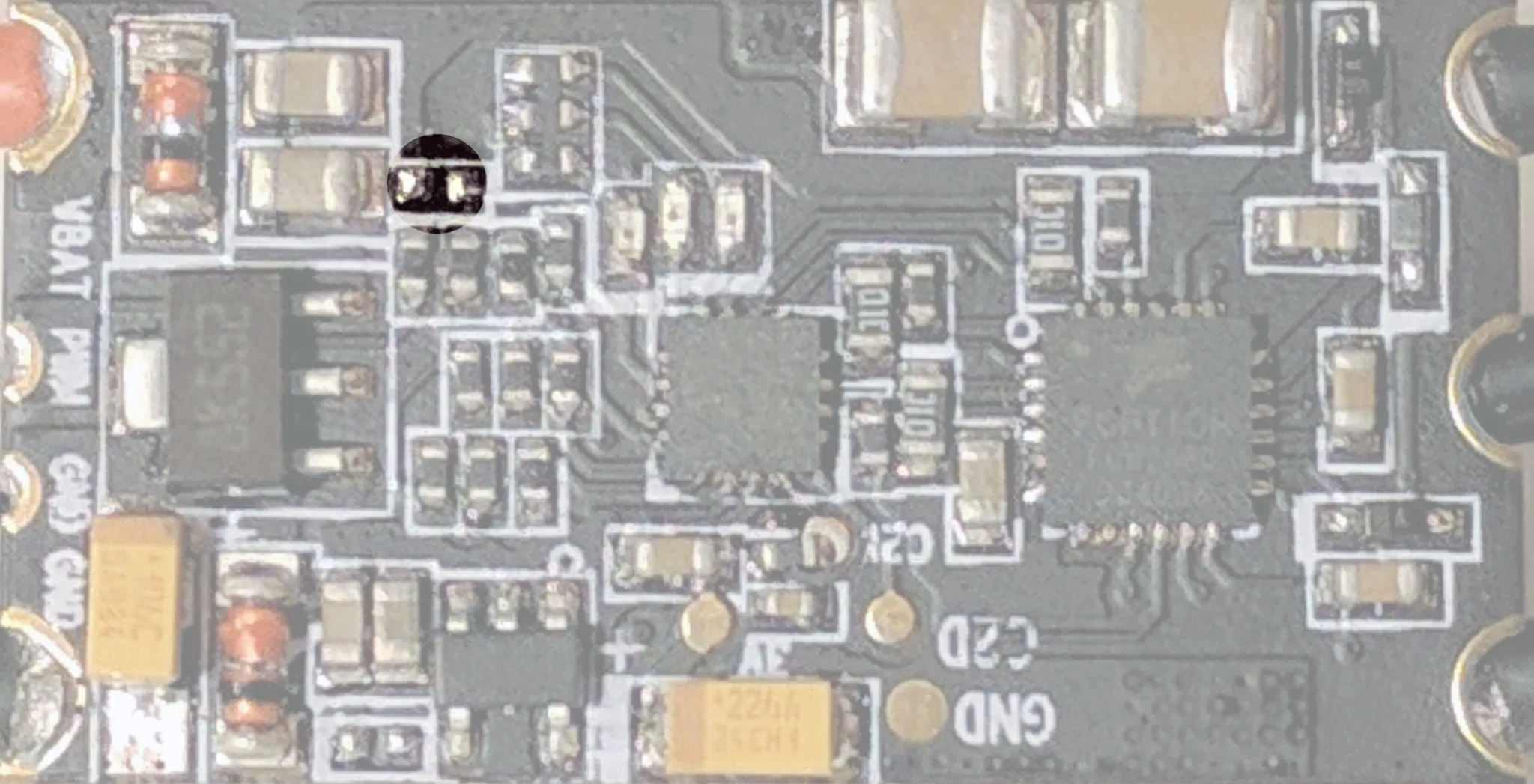
To get DSHOT working, you’ll need to remove this capacitor (thanks again to diehertz for the tip):
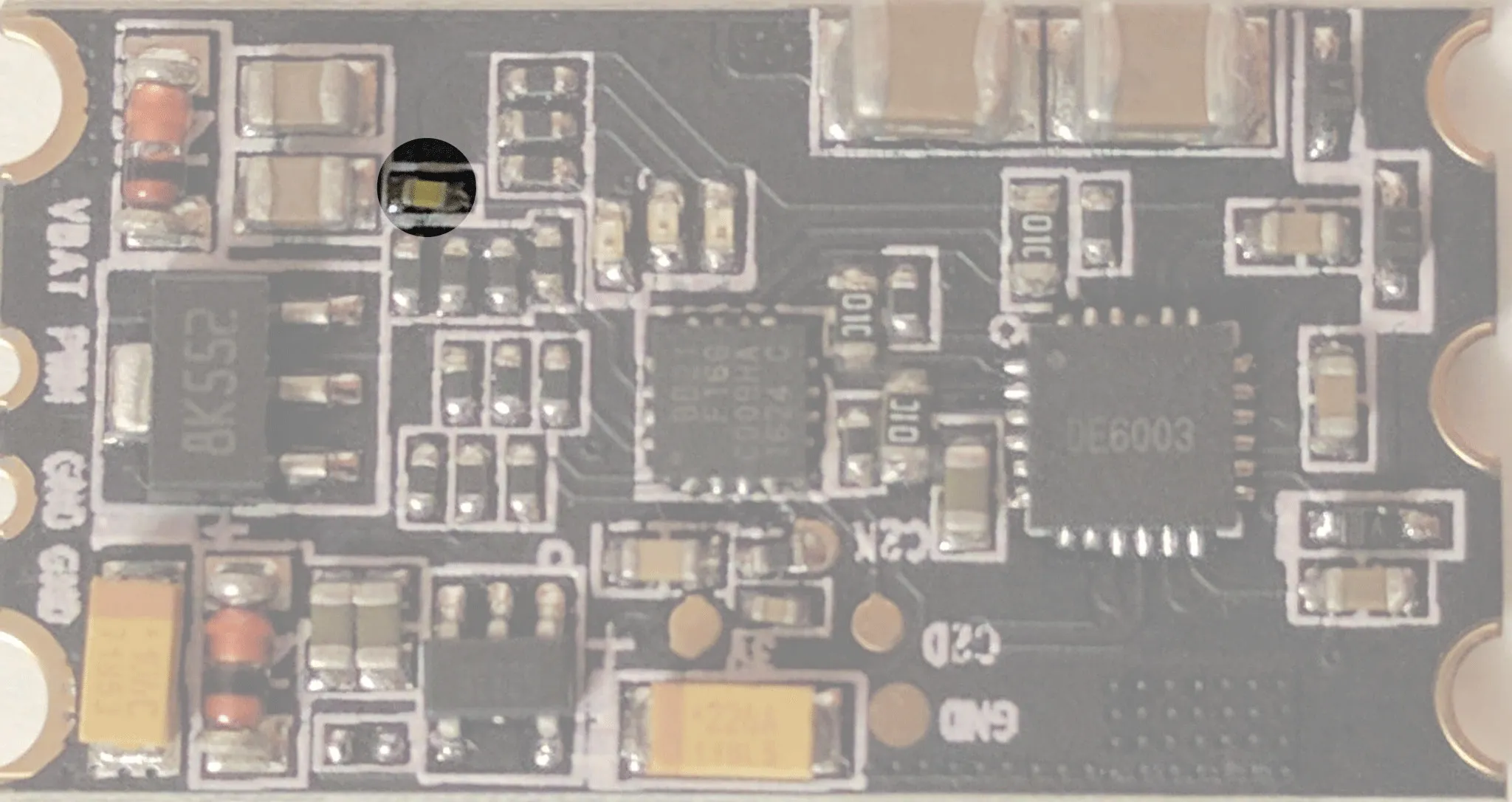
After removal, it will look like this:
If you need to connect a C2 programmer, here is the pinout: