STM32CubeMX Makefile project
STM32CubeMX is a cool little code generation tool from STM that helps you choose the pinout for your microcontroller project given the pin assignment constraints of a given CPU. The only problem is that it doesn’t allow you to generate a Makefile project for use with the arm-none-eabi- toolchain.
I’ll show you how to do this.
STM32CubeMX Overview
If you’ve never used STM32CubeMX before, check out this great overview video first:
By the way, STM32CubeMX now runs on macOS.
Generate the code
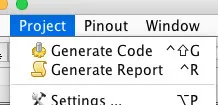
Configure the project pinout as you wish and then choose Project -> Generate Code.
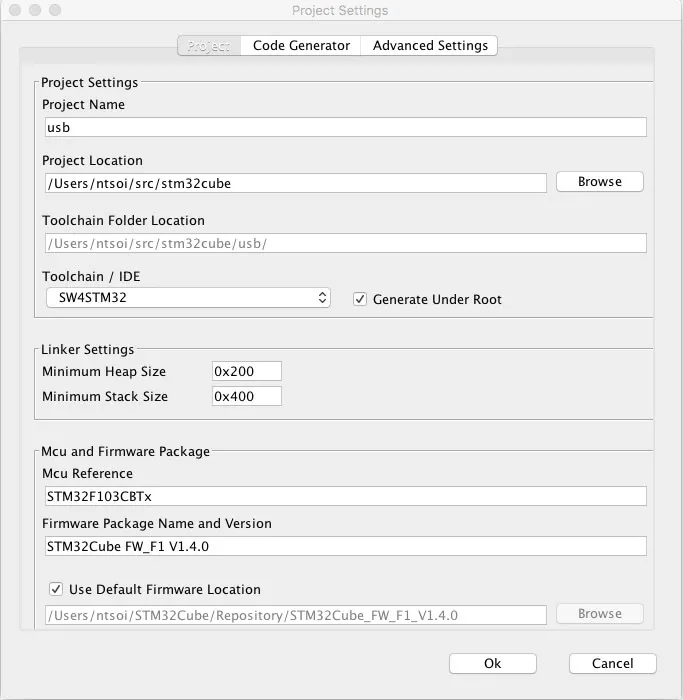
When choosing the export properties, make sure to choose SW4STM32 as your Toolchain / IDE.
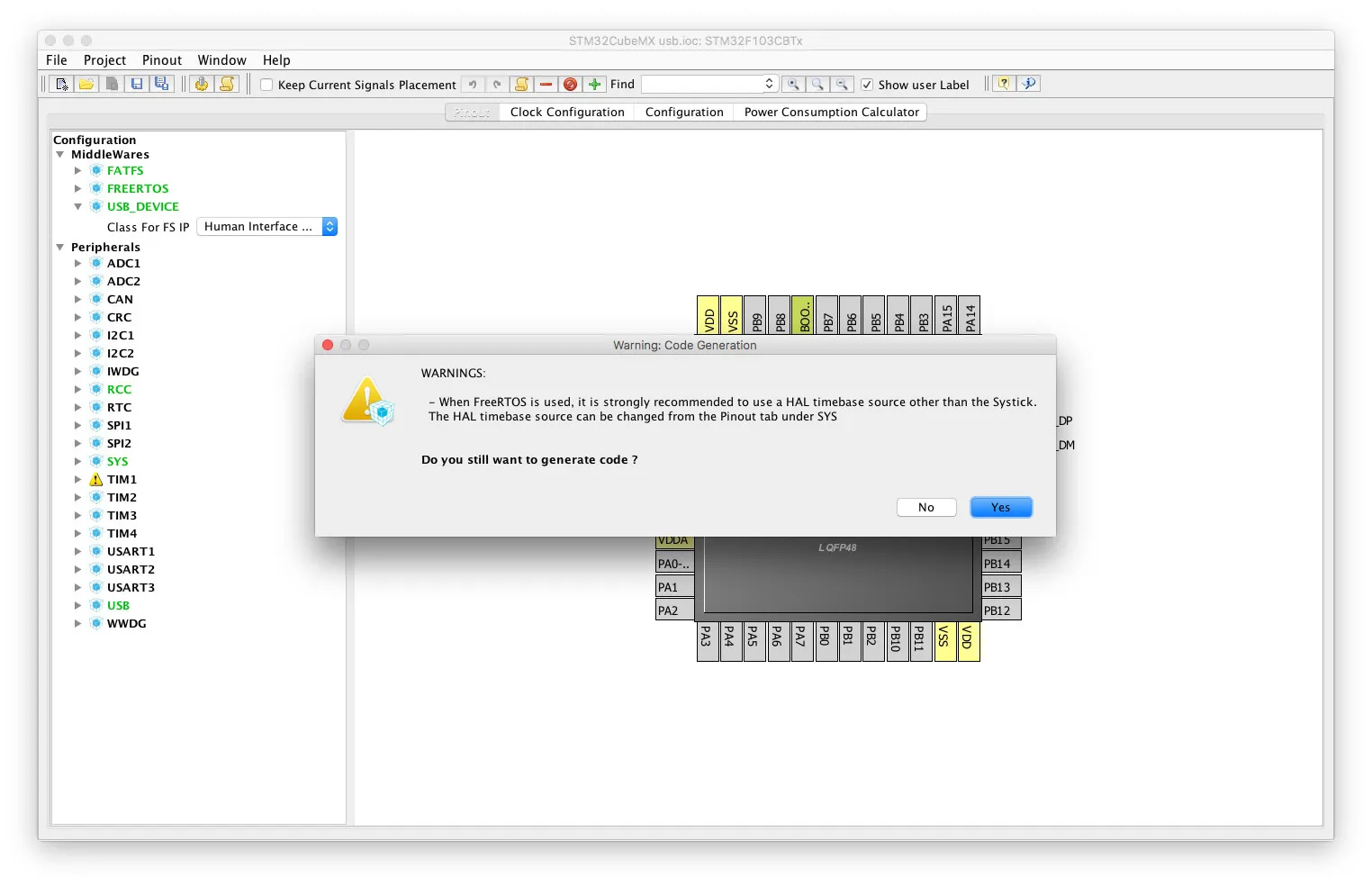
If you get any warnings, go back and fix your configuration, then continue.
Now you can import the project into System Workbench for STM32 (or SW4STM32).

Then import it as a normal Eclipse project.
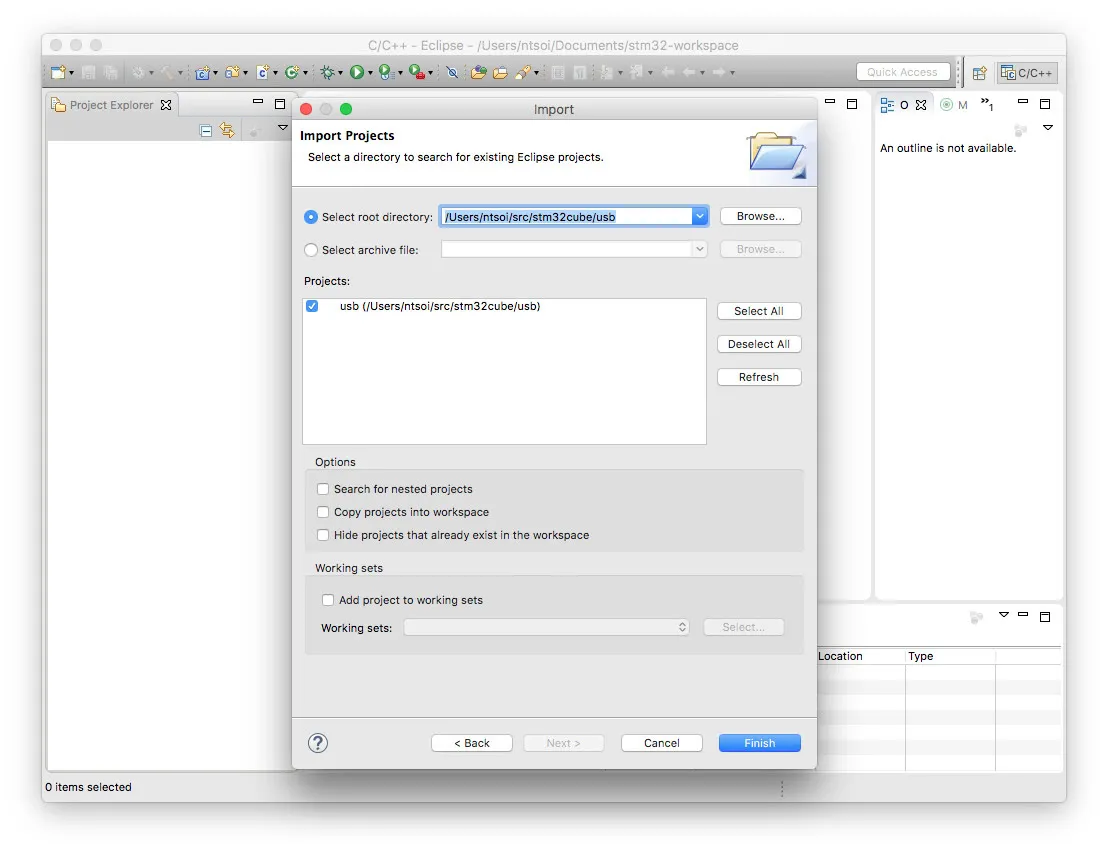
The problem with this for me is that I can’t (or don’t know how to) hook up my Segger J-Link debugger to this version of Eclipse. I tried to install the gnuarmeclipse plugin, but it wasn’t working for me.
Making the Makefile
So instead of figuring this out, I made a Makefile for the project, so I can import it into a normal version of Eclipse with the gnuarmeclipse plugin already installed.
Run the following to clone the repo somewhere, and cd into it:
git clone [/downloads/https-github-com-sl-ru-cubemx2](/downloads/https-github-com-sl-ru-cubemx2)
cd CubeMX2Makefile
Then run the script, where ../usb is the path to your exported project:
python CubeMX2Makefile.py ../usbNow the Makefile is in the root of your project, and a normal make or make clean will work great!
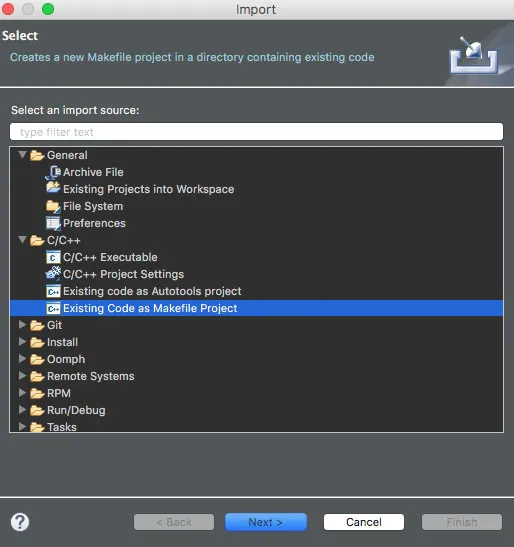
Import it into your normal Eclipse as a new Makefile project.